Labels
blogspot
(5)
copywriting
(1)
facebook
(1)
fotografi
(1)
ideas
(1)
kreativiti
(3)
media sosial
(4)
montage
(4)
pemasaran
(1)
social media
(2)
taktik
(1)
tips
(3)
tutorial
(1)
video
(1)
web hosting
(1)
whatsapp
(1)
Saturday, January 7, 2017
7 Ways To Generate New Ideas
7 Ways to Generate Great Ideas
break your conventional thinking and make that light bulb appear
"free yourself from the conventional, mundane thoughts"
The big challenge of generating great ideas is freeing yourself from the conventional, mundane thoughts that occupy most of your brain time.
Here are 7 tips to help you open your mind and stimulate your great idea generator.
Engage in Observation Sessions
Great ideas won't happen in a vacuum.
You need some way of getting your brain to think in new and creative ways.
A simple walk through the town can introduce you to exciting activity and behavior that makes you think anew.
1
•
•
•
Socialize Outside Your Normal Circles
2
24
New people don't know all your thought patterns and old stories
so you'll have to revisit your existing inner monologues.
The refreshing perspectives will help to surface new thinking and possibly a lightning bolt or two.
•
•
•
Read More Books
3
You'll find plenty of thought stimulation.
Even if you can't make the time for a novel, go hunt down a bookstore and spend an hour browsing.
!
These stories get you out of your daily headspace and activate your idea generator.
Adding books to your routine will help you learn more and expand your way of thinking.
Books are wonderful for creating new thoughts and stimulating great ideas.
Google is great when you know what you are looking for, but the best way to generate new ideas is with unexpected learning.
Take an hour each week and go on a web journey.
Start with the I'm Feeling Lucky button and just take it from there.
Try to pick the stranger and more obscure references as you surf and stretch your brain a bit.
VS
Randomly Surf the Web
4
A journal is great for recording thoughts, feelings and the history of your life.
It also is a great way to structure and develop ideation habits.
Keep a Regular Journal
5
It's hard to come up with great ideas when your mind is crowded with everyday thoughts and concerns.
You need quiet space.
Meditation will help you clear your mind of daily business and stress.
Meditate
6
Structure breeds creativity.
Simple exercises can get your brain working in a focused manner to yield great ideas.
Eg. With a partner, take ten minutes (timed) to come up with few ideas on a specific topic or problem.
Use Structured Exercises
7
http://www.inc.com/kevin-daum/7-ways-to-generate-great-ideas.html
SOURCE
THANK YOU
All of these methods require a commitment of time and energy, but that's the key to great ideas.
You need to give your brain the time and space to work for you.
Tuesday, November 29, 2016
UNITY3D V.4.3.4 Moon Machine Part 3
UNITY3D V.4.3.4 MAIN CAMERA
This tutorial continues from http://game-dev-steps.blogspot.com/2014/03/unity3d-v434-create-lights.html.
STEPS
FINDING MAIN CAMERA
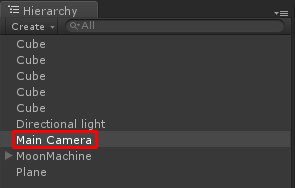
1) Click the item Main Camera in the Hierarchy Panel.
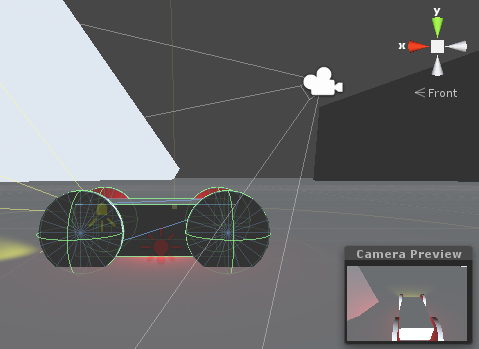
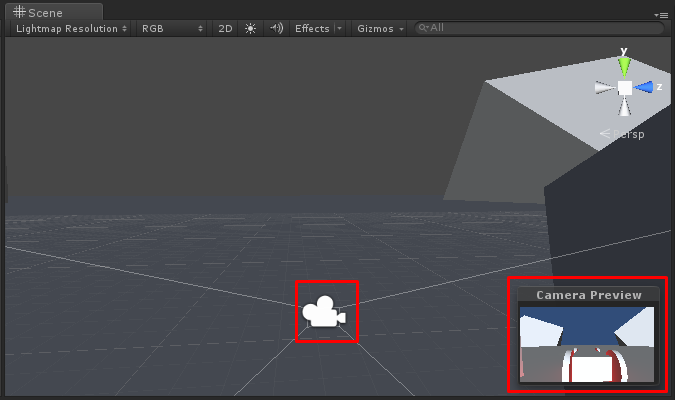
2) The Camera Icon and its Preview Window is shown on the Main Panel.
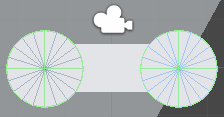
3) Position the camera at the back of the MoonMachine.
Use Move and Rotate tool to put the camera icon at the right place.
You will get a Camera Preview as below.
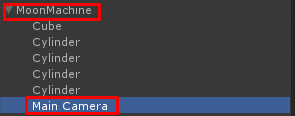
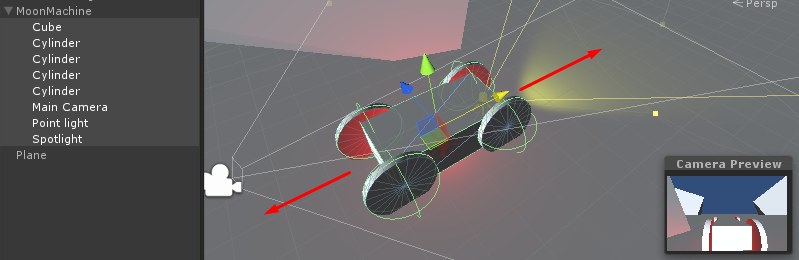
4) To attach the Main Camera to the Moon Machine (so that it follows wherever MoonMachine goes), drag the item into the MoonMachine group.
As a result, when you select all items in the MoonMachine and move them back and forth, the Camera Preview should reflect the movement.
REFERENCES:
UNITY3D V.4.3.4 Moon Machine Part 2
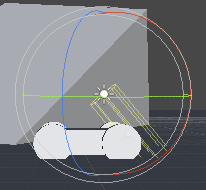
UNITY3D V.4.3.4 CREATE LIGHTS
STEPS
CREATE SPOTLIGHT
1) Go to menu
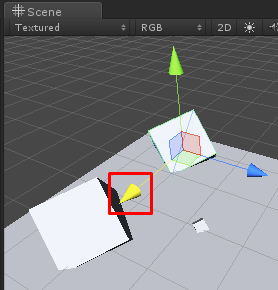
2) Using Move and Rotate tool, place the spotlight in the front of the MoonMachine
CREATE DIRECTIONAL LIGHT
3) Go to menu
4) Using Move and Rotate tool, put directional light on top of the MoonMachine.
CREATE POINT LIGHT
5) Go to menu
6) Using Move and Rotate tool, put point light at the bottom of the MoonMachine.
SET THE COLOUR OF THE LIGHTS
7) The light colour property is set in the Inspector Panel.
7.1) Set…
Directional Light: Light Blue
Spot Light: Yellow
Point Light: Orange
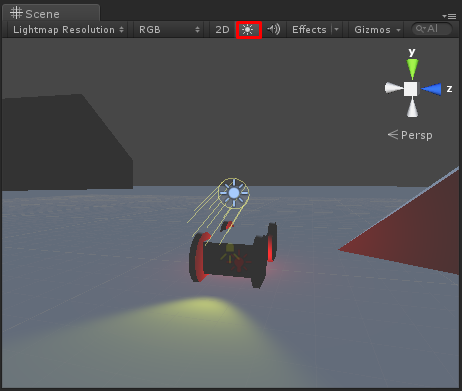
7.2) Check that the light button is turned on.
ATTACH LIGHTS TO OBJECT
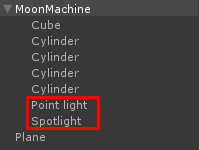
8) To attach the spotlight and pointlight to the MoonMachine, select the items and drag them to the MoonMachine group in the Hierarchy Panel.
REFERENCES:
UNITY3D V.4.3.4 Moon Machine Part 1
UNITY3D V.4.3.4 CREATE 3D OBJECTS
STEPS
CREATE CUBES ENVIRONMENT
1) Start Unity3D v 4.3.4
1.1) Left-click – Move the scene
1.2) Right-click – Pan the scene
1.3) Scroll Up/Down – Zoom In/Out
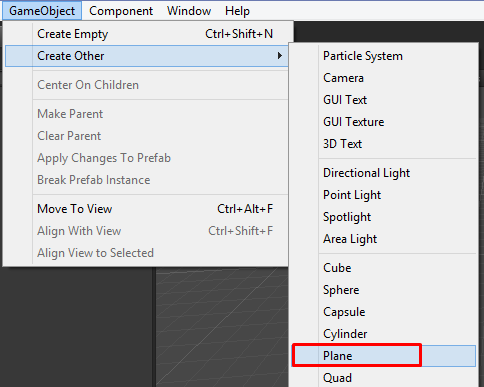
2) Create Plane Object.
Set Position: X=0, Y=0, Z=0.
Set Scale: X=50, Y=50, Z=50.
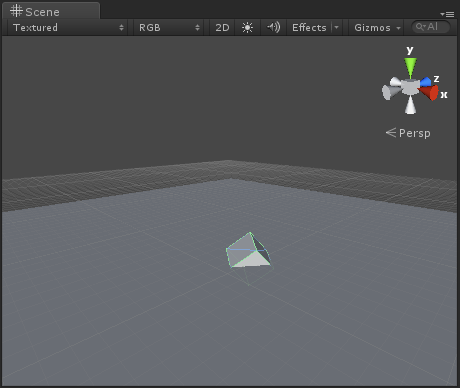
3) Create Cube Object.
Set…
Position: X=-4, Y=0.4, Z=23
Rotation: X=14, Y=126, Z=51
Scale: X=19, Y=19, Z=19
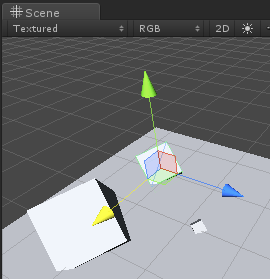
4) Set the view.
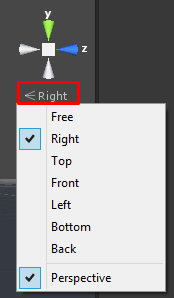
Right-click the label below the view arrows.
Choose Right.
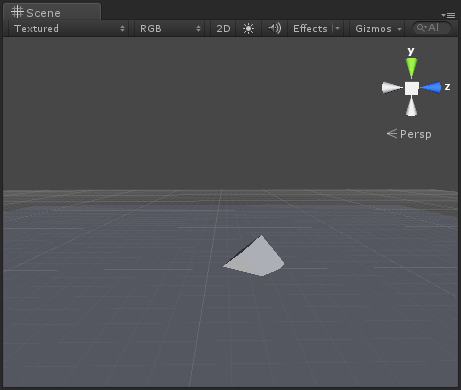
Choose Perspective.
Use Mouse:Left+Click and Mouse:Right+Click to get the view below.
5) Select Cube with Global Coordinate View.
5.1) Click Move button.
5.2) Click Cube.
5.3) Click Global Coordinate mode.
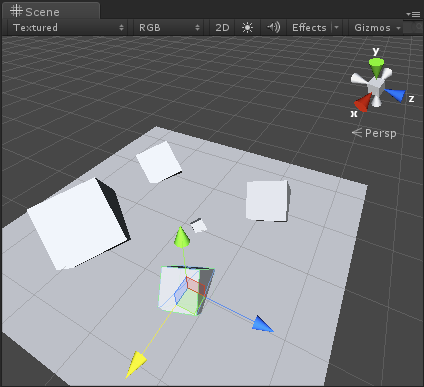
6) Create second Cube using duplicate technique.
6.1) (While Cube is selected) Press CTRL+D.
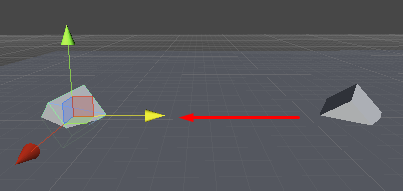
7) Move the second Cube to a new location.
7.1) Left-Click the Blue Arrow of the second Cube.
7.2) While holding Left-Click, move it to the left.
The cube duplicate is now placed at new location.
Set…
Position: X=80, Y=0.4, Z=-130
Rotation: X=14, Y=126, Z=-51
Scale: X=103, Y=103, Z=103
8) Create third cube (duplicate).
8.1) (While Cube is selected) Press CTRL+D.
9) Move third cube away.
Set…
Position: X=-109, Y=0.4, Z=-130
Rotation: X=14, Y=126, Z=-51
Scale: X=66, Y=66, Z=66
9) Create fourth cube.
9.1) (While Cube is selected) Press CTRL+D.
9.2) Set…
Position: X=-109, Y=0.4, Z=105
Rotation: X=14, Y=167, Z=-51
Scale: X=66, Y=66, Z=66
10) Create fifth cube.
10.1) (While Cube is selected) Press CTRL+D.
10.2) Set…
Position: X=98, Y=0.4, Z=68
Rotation: X=14, Y=167, Z=-51
Scale: X=53, Y=53, Z=53
CREATE CAR
11) Create Base Cube.
11.1) Go to menu GameObject/Create Other/Cube.
11.2) Resize the Base Cube.
Double-click the Cube item (to zoom to the object).
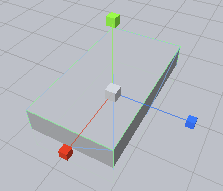
Click the Resize button.
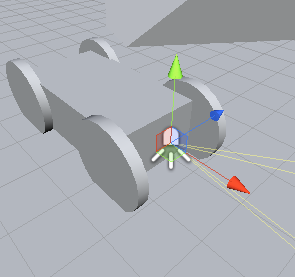
Notice that the arrows are having different end point symbols.
This means that you can click the end point to resize the shape.
Final values should be…
Position: X=0, Y=0, Z=0
Rotation: X=0, Y=0, Z=0
Scale: X=3.1, Y=1, Z=1.7
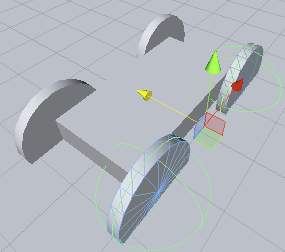
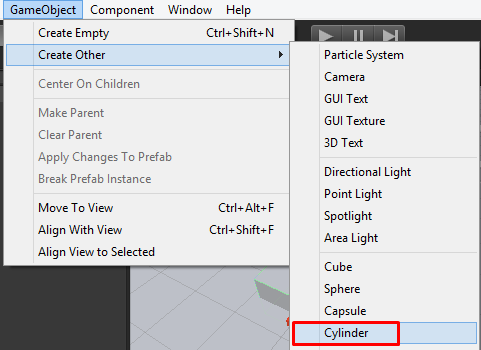
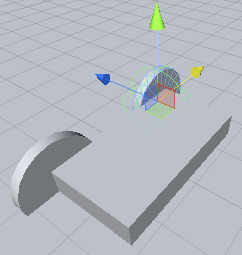
12) Add Cylinder.
12.1) Go to menu.
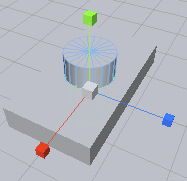
Outcome:
12.2) Set values…
Position: X=0, Y=0, Z=0.9
Rotation: X=-90, Y=0, Z=0
Scale: X=1.6, Y=0.1, Z=1.6
13) Create second cylinder.
13.1) (While selecting the first cylinder) press CTRL+D.
13.2) Move to the other corner of the base cube.
13.3) Set values…
Position: X=1.4, Y=0, Z=0.9
Rotation: X=-90, Y=0, Z=0
Scale: X=1.6, Y=0.1, Z=1.6
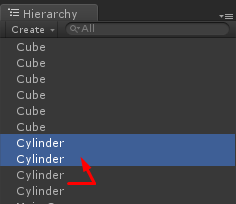
14) Create the third and fourth cylinder (by duplicating first and second cylinder).
14.1) While selecting both first and second cylinder, press CTRL+D.
14.2) Move to the other sides of the base cube.
Adjust the position of the cylinder so that their centers are aligned to the base cube.
CREATE A GROUP FOR THE CAR
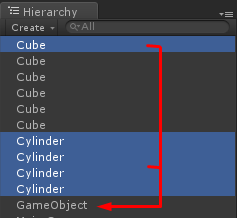
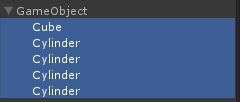
15) Create a new empty object.
15.1) Go to menu
15.2) Select (using Ctrl+Click) and drag the items into the GameObject item.
Outcome…
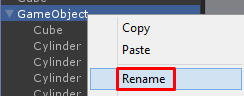
15.3) Rename the GameObject as “MoonMachine”.
Outcome…
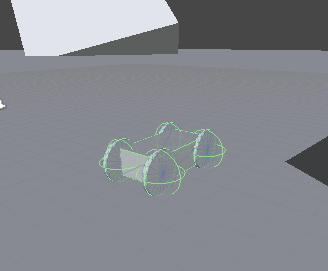
Adjust the position of the MoonMachine so that it is located on the plane.
REFERENCES:
Subscribe to:
Posts (Atom)